Why I Built My Own Website Editor
It started with wanting to lock my screen.
I’d set up a shortcut in macOS Shortcuts.app that ran open -a ScreenSaverEngine, bound it to a hotkey, and expected it to just work. It didn’t. The hotkey fired maybe one time in three. No error, no feedback — it just silently ignored the keypress most of the time.
So I built a 200-line Swift app that does the same thing reliably. That app (ScreenLock) uses a CGEvent tap to listen for the hotkey and launches the screen saver directly. It works every single time.
This is a pattern I keep running into: a general-purpose tool almost does what I need, but the gap between “almost” and “actually” is where all the frustration lives.
The website problem
I run a static website. HTML files, one CSS stylesheet, some PNG icons. No framework, no build system (for the main pages — the blog has a small Node.js generator). It’s deliberately simple.
But editing it was not simple. My workflow looked like this:
- Open a terminal
- Navigate to the site directory
- Open the file in a text editor
- Make changes
- Switch to the terminal
- Run the Docker build command to update staging
- Switch to a browser to check the result
- Switch back to the editor to fix something
- Repeat steps 5–8 several times
- Run the git commit and push commands
- Run the Cloudflare deploy command
- Verify the production site
That’s a lot of context switching for changing a paragraph of text.
I already had a Notes Editor for blog posts — a SwiftUI app with a three-pane layout (sidebar, editor, preview). It handles markdown files, builds the blog HTML, and deploys to both staging and production. What if I had something similar for the rest of the website?
Jorvik Web Editor
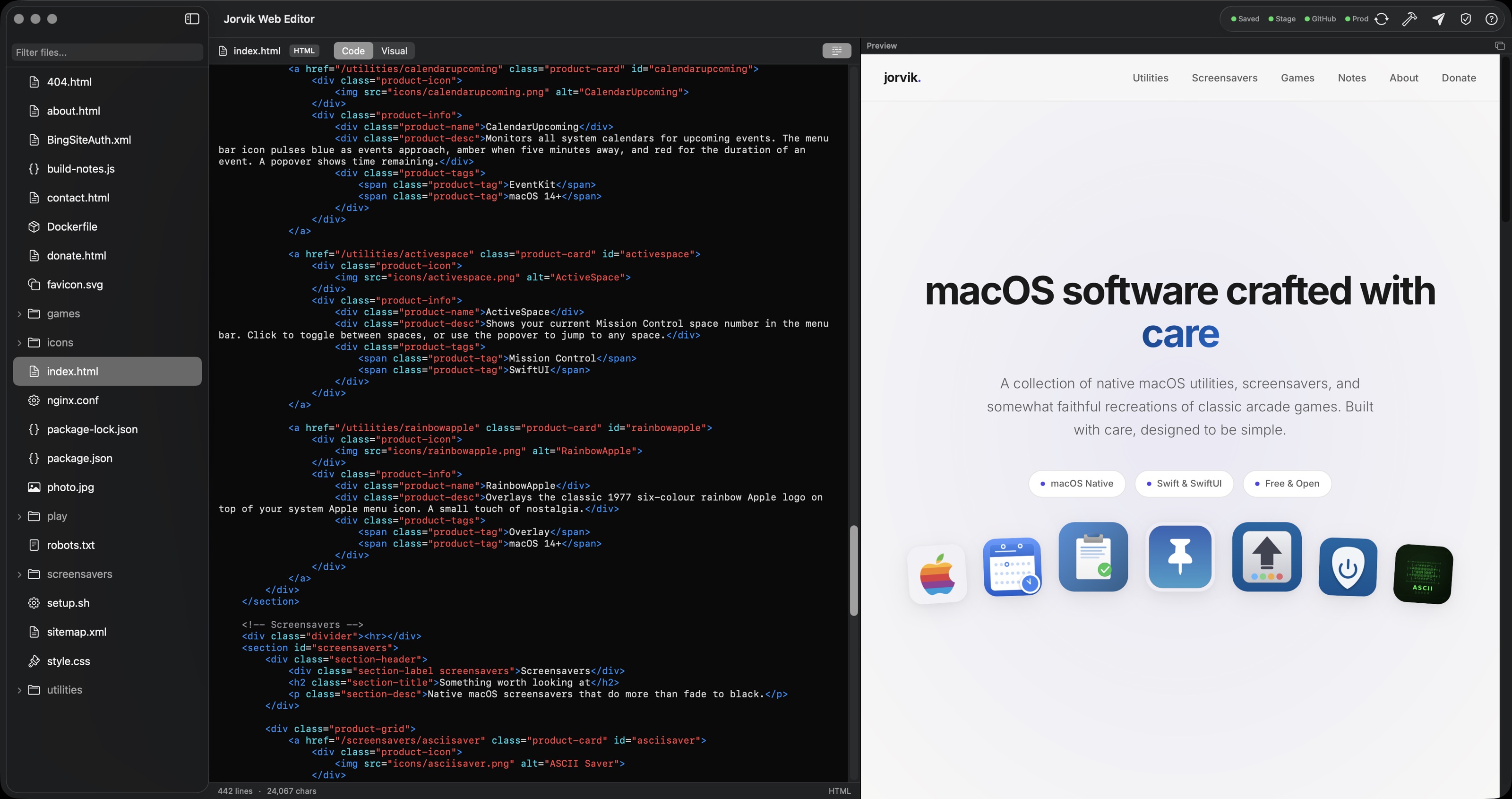
So today I built one. A three-pane macOS app:
Left pane: file browser. A tree view of the website directory with search/filter. It excludes the notes/ directory (that’s the Notes Editor’s domain), .git/, node_modules/, and other non-content directories. Click a file to open it.
Centre pane: editor. A syntax-highlighted text editor built on NSTextView. HTML tags are blue, attributes are teal, strings are red. CSS properties are purple. JavaScript keywords are pink. There’s a word wrap toggle, a WYSIWYG mode for HTML files, and a revert button that restores the file to its last committed state.
Right pane: preview. A live WKWebView that renders the HTML with the site’s actual CSS and assets. Edit the code, and the preview updates in real time. For CSS files, it shows the homepage rendered with the edited stylesheet. The preview can be detached into its own window — useful on a second monitor.
The toolbar has four actions: Sync (git pull), Stage (Docker build + run), Publish (git push + Cloudflare deploy), and Validate (HTML validation using the same html-validate rules as the blog build system).
Four status dots show the state of the current file: whether it’s saved, whether staging has this version, whether GitHub has this version, and whether production has this version. They cascade correctly — if the file is unsaved, everything downstream is orange.
There’s also a text transform system. As I type, … automatically becomes …, -- becomes –, and — becomes —. The transforms are HTML-context-aware — they don’t fire inside tags or script blocks.
The argument for building your own
I could have used VS Code. It has syntax highlighting, a preview pane, extensions for HTML validation, and a built-in terminal for deployment commands. It would have covered 80% of what I need.
But that remaining 20% is the entire point:
Deployment is one click. Not “open the terminal, type the command, wait, type the next command.” One button deploys to staging. Another button commits, pushes, and deploys to production. The status dots tell me where I am.
The preview loads my actual site. Not a generic HTML preview — my site, with my CSS, my fonts, my icons. When I edit the stylesheet, the preview shows my homepage with the changes applied in real time.
The transforms match my workflow. I write HTML entities constantly. Having … auto-replace as I type saves me from writing … hundreds of times. It knows not to replace inside tags.
The tool respects my project structure. It knows that notes/ belongs to the Notes Editor. It knows that .webeditor-preview.html should be gitignored. It knows the Cloudflare project name and account ID. It shares the API token with the Notes Editor via the macOS Keychain.
None of this is rocket science. But none of it comes for free in a general-purpose editor, and configuring it all via extensions and settings files is its own kind of work — work that you redo every time something updates or breaks.
The cost
The Web Editor is about 1,500 lines of Swift across 22 source files. It took a few hours to build. It will take a few more hours to refine as I use it and discover the rough edges.
Is that more effort than configuring VS Code? Probably. But the result is a tool that fits my workflow exactly, runs natively, starts instantly, and will never change out from under me because a dependency updated.
There’s a version of this argument that says “just use the existing tool, don’t waste time building your own.” And for most things, that’s right. But for a tool you use every day, that sits at the centre of your workflow, the calculus changes. The time you invest in a custom tool pays back every time you use it.
My screen saver hotkey works every time now. My website deploys in one click. The tools do exactly what I need and nothing more. That’s worth building for.