Screen Savers Still Exist
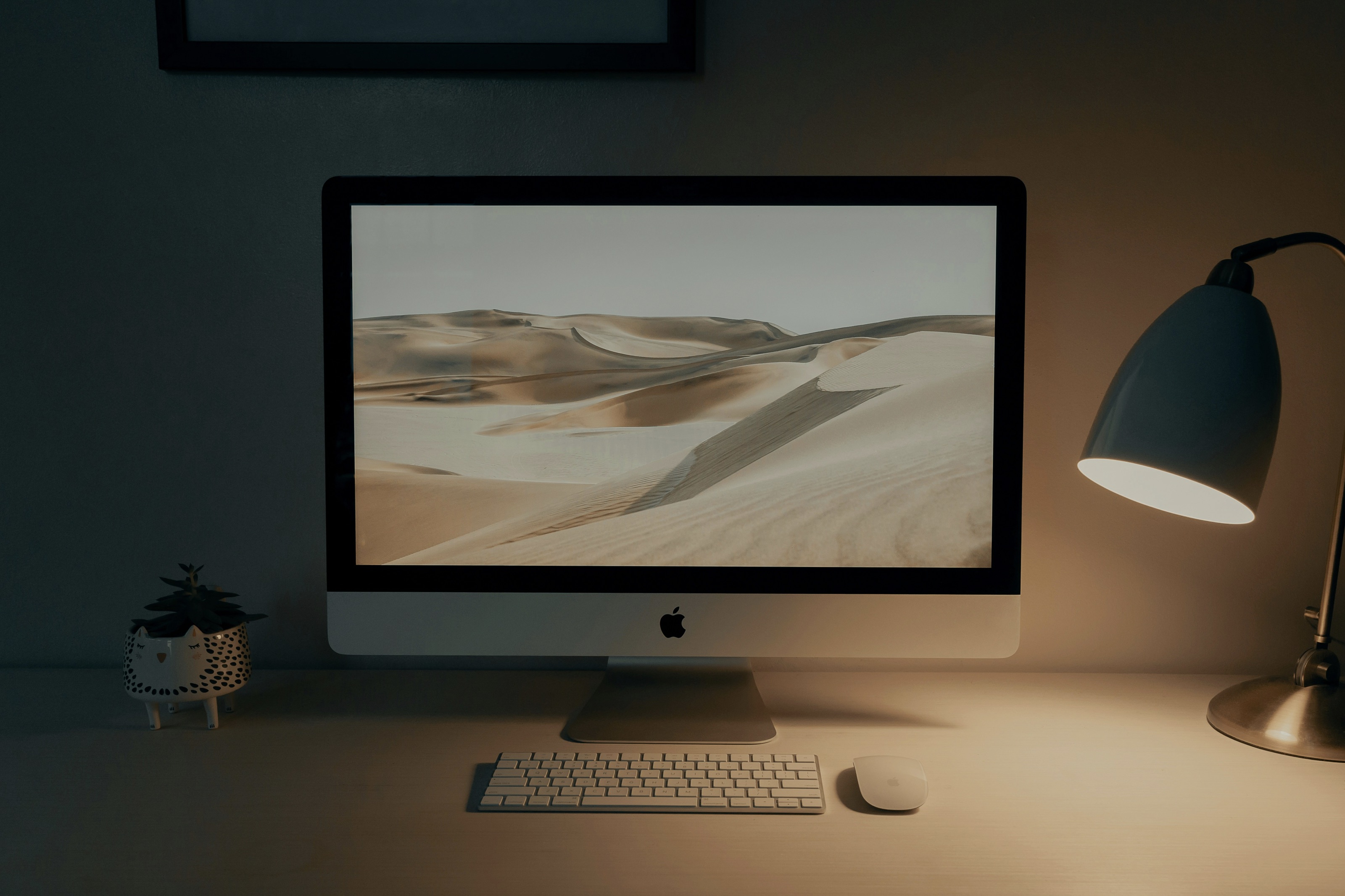
Photo by Clay Banks on Unsplash
I built a screen saver in 2026. Not ironically. Not as a joke. A genuine .saver bundle that installs into System Settings, activates after five minutes of idle time, and does something mildly interesting with your screen while you’re away.
Most people I mention this to react the same way: “macOS still has screen savers?”
It does. And building one is a surprisingly interesting exercise in working with a part of the operating system that Apple seems to have mostly forgotten about.
Why screen savers still exist
The original purpose of a screen saver was to prevent phosphor burn-in on CRT monitors. That problem hasn’t existed for twenty years. Modern displays — LCD, OLED, mini-LED — don’t burn in from static images in any meaningful timeframe (OLED has some susceptibility, but the OS handles that with pixel shifting, not screen savers).
So why does macOS still ship with a screen saver framework?
Partly inertia. The ScreenSaverView API has been part of macOS since the early days of OS X, and Apple doesn’t remove things from the system frameworks unless they have a compelling reason. Partly because screen savers serve a purpose that has nothing to do with screen protection: they’re a visual signal that a machine is idle. In an office, a screen saver means “this person stepped away.” It’s a social convention that happens to be implemented in software.
And partly because they’re fun. Apple clearly thinks so — macOS Sonoma added a set of beautiful slow-motion video screen savers that double as lock screen backgrounds. They don’t prevent burn-in. They’re just nice to look at.
ASCII Saver
My screen saver — ASCII Saver — takes the feed from your Mac’s camera, converts each frame to ASCII art, and renders it as a full-screen grid of characters on a black background. Your face, your desk, your cat, your empty chair — all reduced to a matrix of letters, numbers, and symbols that approximate the light and shadow of the original image.
The effect is somewhere between retro computing aesthetic and security camera footage from a particularly artistic building. It’s recognisably “you” but abstracted enough to be interesting rather than unsettling. The character density is high enough that you can make out shapes and movement, but low enough that the individual characters are visible. It updates at roughly 15 frames per second — fast enough for smooth motion, slow enough that you can actually see the characters changing.
There’s something oddly meditative about watching yourself rendered in monospace text. Your movements become patterns of shifting characters. Raising your hand changes a column of spaces into a cascade of Ms and Ws (the densest ASCII characters). Leaning back dissolves your outline into dots and commas. The mapping from brightness to character is deterministic — the same light level always produces the same character — so the image has a consistency that pure noise wouldn’t have.
I convinced you… you want to build your own screen saver now, don’t you?
The .saver bundle
A macOS screen saver is a bundle with the .saver extension that contains a compiled framework. The entry point is a subclass of ScreenSaverView — an NSView subclass provided by the ScreenSaver framework. You override animateOneFrame(), which the system calls at whatever frame rate you’ve requested, and draw into the view.
import ScreenSaver

class ASCIISaverView: ScreenSaverView {
    override func animateOneFrame() {
        // Capture frame, convert to ASCII, draw
    }
}
That’s the skeleton. The system handles activation, deactivation, configuration sheets, preview rendering in System Settings, and hot-corner triggering. Your code just draws.
Installation is into ~/Library/Screen Savers/ (per-user) or /Library/Screen Savers/ (system-wide). Drop the .saver bundle there and it appears in System Settings under Screen Saver. No registration, no manifest, no app wrapper required.
What Apple forgot
Building a screen saver in 2026 means working with an API that Apple maintains but doesn’t actively develop. The ScreenSaver framework hasn’t had significant updates in years. The documentation is sparse and occasionally wrong. The preview rendering in System Settings is buggy — it sometimes caches old versions of the screen saver, requiring a logout to see changes.
The configuration sheet mechanism — configureSheet() — returns an NSWindow that the system displays as a modal sheet when the user clicks “Options” in Screen Saver settings. This works, but SwiftUI views don’t play nicely inside it. You end up bridging SwiftUI into AppKit with NSHostingController, which adds complexity for what should be a simple preferences panel.
The hot corner activation has a curious behaviour: when triggered by a hot corner, the screen saver starts in a different lifecycle state than when triggered by the idle timer. Some initialisation that happens automatically in the timer path doesn’t happen in the hot corner path. If your screen saver has setup that assumes a particular activation order, hot corners will break it.
And then there’s the code signing. Screen savers need to be signed and notarised like any other distributable macOS binary. But they also need to be signed in a way that the legacyScreenSaver host process trusts. If the signature is wrong — or if the signing identity doesn’t match what the system expects — the screen saver silently fails to load. No error message. It just doesn’t appear in System Settings.
The forgotten platform
Screen savers occupy a strange niche in the macOS ecosystem. They’re not apps — they don’t have their own process, their own Dock icon, or their own lifecycle. They’re plugins hosted by a system process, with all the constraints that implies. They can’t do anything the host process doesn’t allow, they can’t request permissions the host process doesn’t have, and they can’t persist state in the usual ways because they’re loaded and unloaded at the system’s discretion.
And yet they have direct access to the full screen, the GPU, and — through service/agent workarounds — hardware peripherals. They run when the user is away, which means they can do things that would be distracting during active use. They’re a canvas with no UI obligations — no buttons, no menus, no accessibility requirements. Just a rectangle of pixels that you can fill however you want.
I think there’s more to be done with this canvas than we’re currently doing. The Apple-provided screen savers in Sonoma are beautiful, but they’re passive — pre-recorded video. A screen saver has access to real-time data: the time, the date, the weather, the calendar, the camera, the microphone, the network. It could show you your next meeting. It could visualise your currently-playing music. It could render your recent git activity as a contribution graph. It could do anything that a full-screen, always-idle application can do.
Nobody’s building these things, partly because the API is old and the documentation is thin, and partly because screen savers have a branding problem. They sound like a relic. They sound like the flying toasters and maze solvers of the 1990s. They sound unserious.
But a dedicated full-screen display that activates when you step away from your desk? That’s not unserious. That’s a digital photo frame. That’s a dashboard. That’s ambient information design. It’s just wearing the wrong name.
Building one yourself
If you want to build a macOS screen saver, here’s what I wish someone had told me:
Start with a new Xcode project using the Screen Saver template. It gives you the ScreenSaverView subclass and the correct bundle structure. Build it, and copy the .saver to ~/Library/Screen Savers/. It should appear in System Settings immediately, but if it doesn’t, log out and back in.
Keep your first version simple. Override animateOneFrame(), draw something, see it work. The preview in System Settings is small but functional — you don’t need to test with the full screen saver activated until you’re further along.
If you need any hardware access — camera, microphone, location — you need an out-of-process helper. Accept this early and architect for it from the start. Don’t spend hours trying to make camera access work inside the sandbox. It won’t.
Sign everything. The .saver, the helper app, all of it. An unsigned screen saver will silently fail to load on any Mac with the default security settings.
And test with hot corners, not just the idle timer. The activation paths are different, and the differences will find your bugs.
Screen savers are a forgotten corner of macOS. But forgotten corners are where the interesting work happens — where the API is stable because nobody’s changing it, where the competition is thin because nobody’s building for it, and where a small, focused project can produce something genuinely delightful.
Turning your idle Mac into a real-time ASCII art rendering of your office? That’s delightful. I’ll stand by that.